Introduction
With streaming services becoming the preferred way to enjoy live TV and on-demand content, IPTV Smarters Player has emerged as a popular option for IPTV users. This versatile player is known for its user-friendly interface and a wide range of features that elevate your streaming experience. In this guide, we’ll take you through the steps to install IPTV Smarters Player on Roku TV, ensuring a smooth setup so you can enjoy your favorite shows, sports, and more.
1. What is IPTV Smarters Player?
IPTV Smarters Player is a feature-rich IPTV player designed to offer an enhanced streaming experience. It allows users to integrate multiple IPTV subscriptions into one platform, providing access to a wide variety of live TV channels, video-on-demand (VOD) content, and catch-up TV features.
Key Features:
- User-friendly interface: Designed for easy navigation and quick access to your content.
- Customization options: Personalize your viewing experience with various settings.
- Cross-platform compatibility: Works on multiple devices, making it versatile for users.
2. Why Use IPTV Smarters Player on Roku TV?
Roku TVs are popular due to their ease of use and wide variety of streaming apps. While IPTV Smarters Player is not directly available on Roku’s app store, it can still be used on Roku devices through screen mirroring.
Benefits of IPTV Smarters on Roku TV:
- Seamless viewing: Integrate your IPTV subscription and stream live TV and VODs without any issues.
- Enhanced performance: Roku’s stable platform ensures smooth streaming without lag.
3. Compatibility and Requirements
To use IPTV Smarters Player on Roku TV, you’ll need the following:
- Roku TV: Any Roku model that supports screen mirroring (most models do).
- IPTV Smarters Player app: Installed on a secondary device like your Android phone or Windows PC.
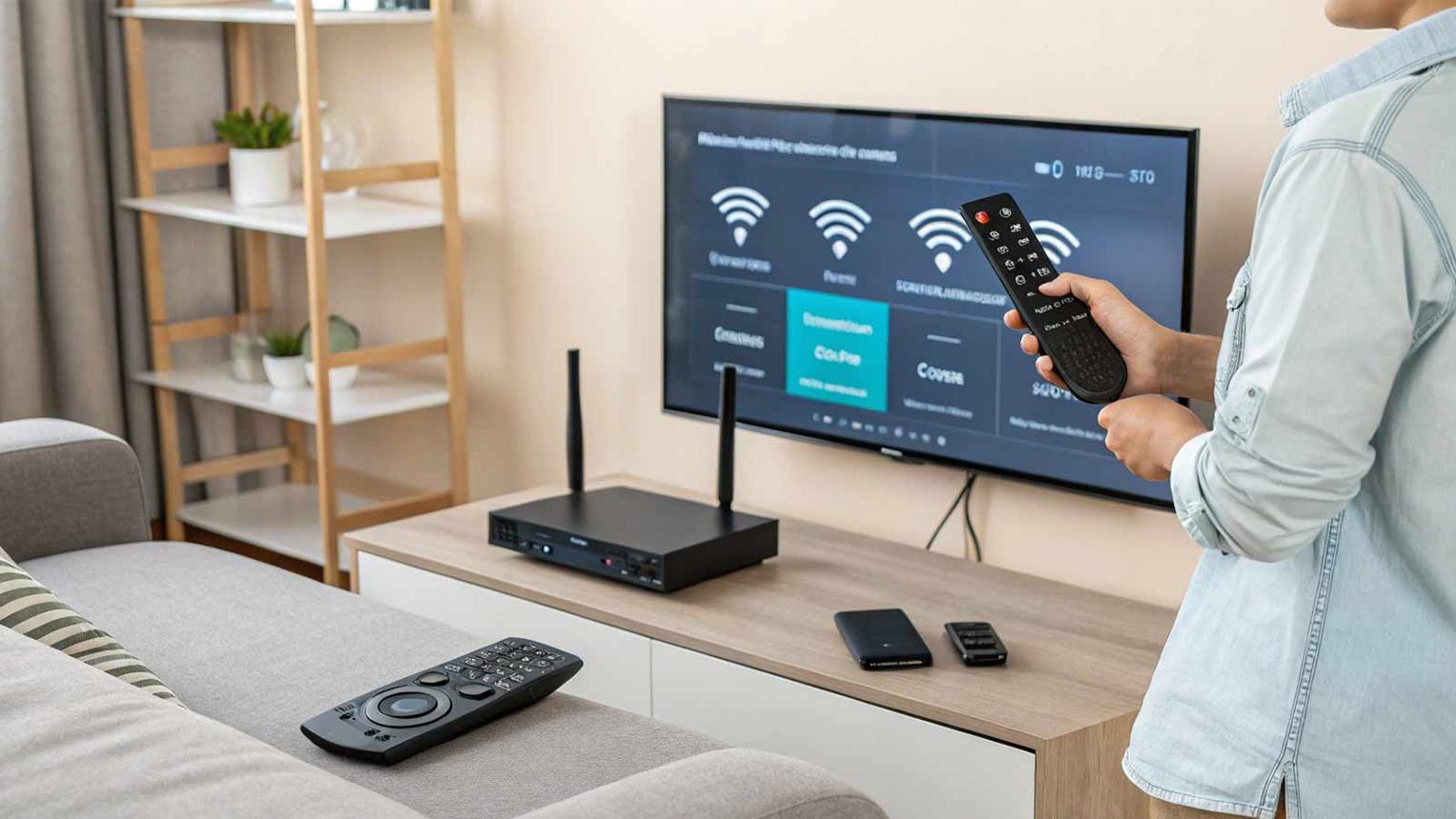
- Wi-Fi connection: Both your Roku TV and secondary device should be connected to the same Wi-Fi network.
4. How to Install IPTV Smarters Player on Roku TV
Since IPTV Smarters Player is not directly available on Roku’s app store, the installation process involves using a workaround with screen mirroring from another device.
Step-by-Step Guide:
- Enable Screen Mirroring on Roku TV:
- Go to the Roku home screen.
- Navigate to Settings > System > Screen Mirroring.
- Choose Enable screen mirroring.
- Install IPTV Smarters Player on a Secondary Device:
- On your Android or Windows device, download the IPTV Smarters Player from the Google Play Store or relevant app store.
- Connect Your Device to Roku:
- Open the IPTV Smarters Player app on your device.
- Swipe down on your Android phone and tap on Cast or use Screen Mirroring if you’re on Windows.
- Select your Roku device from the list of available devices.
- Stream IPTV Content:
- Once the screen mirroring is active, the IPTV Smarters Player interface will appear on your Roku TV.
- You can now stream live TV, VOD, and other content directly from your Roku screen.
5. Setting Up IPTV Smarters Player
After the installation, it’s time to set up your IPTV Smarters Player. You’ll need to log in with your IPTV provider credentials to access the content.
Configuration Steps:
- Open IPTV Smarters Player: Launch the app on your secondary device (the one mirroring to Roku).
- Log in with IPTV Credentials: Enter your subscription details to access the content.
- Customize Your Settings: Adjust video quality, set up parental controls, and personalize the app to suit your needs.
6. Troubleshooting Common Issues
While IPTV Smarters Player is generally reliable, you may encounter some issues while using it on Roku TV. Here’s how to address them:
- Screen mirroring isn’t working: Ensure both your Roku TV and secondary device are connected to the same Wi-Fi network and that screen mirroring is enabled on Roku.
- App not responding: Try restarting the app on your secondary device, or reconnecting the screen mirroring session.
- Buffering or lag: Check your internet speed and switch to a wired connection if possible.
7. Security and Legal Considerations
When using IPTV Smarters Player, it’s important to ensure that you are accessing legal IPTV services. Using unauthorized IPTV services can lead to legal issues and privacy risks. For added security, consider using a VPN to protect your data while streaming.
Key Tips:
- Use licensed IPTV services: Avoid using unverified sources to prevent potential legal consequences.
- Protect your privacy: A VPN can help secure your internet connection and hide your streaming activity from prying eyes.
Conclusion
While Roku doesn’t natively support IPTV Smarters Player, you can easily stream your IPTV content using screen mirroring from an Android or Windows device. By following the steps outlined in this guide, you’ll be able to install and set up IPTV Smarters Player on your Roku TV and enjoy seamless access to live channels and on-demand content.
Introduction
With streaming services becoming the preferred way to enjoy live TV and on-demand content, IPTV Smarters Player has emerged as a popular option for IPTV users. This versatile player is known for its user-friendly interface and a wide range of features that elevate your streaming experience. In this guide, we’ll take you through the steps to install IPTV Smarters Player on Roku TV, ensuring a smooth setup so you can enjoy your favorite shows, sports, and more.
1. What is IPTV Smarters Player?
IPTV Smarters Player is a feature-rich IPTV player designed to offer an enhanced streaming experience. It allows users to integrate multiple IPTV subscriptions into one platform, providing access to a wide variety of live TV channels, video-on-demand (VOD) content, and catch-up TV features.
Key Features:
- User-friendly interface: Designed for easy navigation and quick access to your content.
- Customization options: Personalize your viewing experience with various settings.
- Cross-platform compatibility: Works on multiple devices, making it versatile for users.
2. Why Use IPTV Smarters Player on Roku TV?
Roku TVs are popular due to their ease of use and wide variety of streaming apps. While IPTV Smarters Player is not directly available on Roku’s app store, it can still be used on Roku devices through screen mirroring.
Benefits of IPTV Smarters on Roku TV:
- Seamless viewing: Integrate your IPTV subscription and stream live TV and VODs without any issues.
- Enhanced performance: Roku’s stable platform ensures smooth streaming without lag.
3. Compatibility and Requirements
To use IPTV Smarters Player on Roku TV, you’ll need the following:
- Roku TV: Any Roku model that supports screen mirroring (most models do).
- IPTV Smarters Player app: Installed on a secondary device like your Android phone or Windows PC.
- Wi-Fi connection: Both your Roku TV and secondary device should be connected to the same Wi-Fi network.
4. How to Install IPTV Smarters Player on Roku TV
Since IPTV Smarters Player is not directly available on Roku’s app store, the installation process involves using a workaround with screen mirroring from another device.
Step-by-Step Guide:
- Enable Screen Mirroring on Roku TV:
- Go to the Roku home screen.
- Navigate to Settings > System > Screen Mirroring.
- Choose Enable screen mirroring.
- Install IPTV Smarters Player on a Secondary Device:
- On your Android or Windows device, download the IPTV Smarters Player from the Google Play Store or relevant app store.
- Connect Your Device to Roku:
- Open the IPTV Smarters Player app on your device.
- Swipe down on your Android phone and tap on Cast or use Screen Mirroring if you’re on Windows.
- Select your Roku device from the list of available devices.
- Stream IPTV Content:
- Once the screen mirroring is active, the IPTV Smarters Player interface will appear on your Roku TV.
- You can now stream live TV, VOD, and other content directly from your Roku screen.
5. Setting Up IPTV Smarters Player
After the installation, it’s time to set up your IPTV Smarters Player. You’ll need to log in with your IPTV provider credentials to access the content.
Configuration Steps:
- Open IPTV Smarters Player: Launch the app on your secondary device (the one mirroring to Roku).
- Log in with IPTV Credentials: Enter your subscription details to access the content.
- Customize Your Settings: Adjust video quality, set up parental controls, and personalize the app to suit your needs.
6. Troubleshooting Common Issues
While IPTV Smarters Player is generally reliable, you may encounter some issues while using it on Roku TV. Here’s how to address them:
- Screen mirroring isn’t working: Ensure both your Roku TV and secondary device are connected to the same Wi-Fi network and that screen mirroring is enabled on Roku.
- App not responding: Try restarting the app on your secondary device, or reconnecting the screen mirroring session.
- Buffering or lag: Check your internet speed and switch to a wired connection if possible.
7. Security and Legal Considerations
When using IPTV Smarters Player, it’s important to ensure that you are accessing legal IPTV services. Using unauthorized IPTV services can lead to legal issues and privacy risks. For added security, consider using a VPN to protect your data while streaming.
Key Tips:
- Use licensed IPTV services: Avoid using unverified sources to prevent potential legal consequences.
- Protect your privacy: A VPN can help secure your internet connection and hide your streaming activity from prying eyes.
Conclusion
While Roku doesn’t natively support IPTV Smarters Player, you can easily stream your IPTV content using screen mirroring from an Android or Windows device. By following the steps outlined in this guide, you’ll be able to install and set up IPTV Smarters Player on your Roku TV and enjoy seamless access to live channels and on-demand content.
Introduction
With streaming services becoming the preferred way to enjoy live TV and on-demand content, IPTV Smarters Player has emerged as a popular option for IPTV users. This versatile player is known for its user-friendly interface and a wide range of features that elevate your streaming experience. In this guide, we’ll take you through the steps to install IPTV Smarters Player on Roku TV, ensuring a smooth setup so you can enjoy your favorite shows, sports, and more.
1. What is IPTV Smarters Player?
IPTV Smarters Player is a feature-rich IPTV player designed to offer an enhanced streaming experience. It allows users to integrate multiple IPTV subscriptions into one platform, providing access to a wide variety of live TV channels, video-on-demand (VOD) content, and catch-up TV features.
Key Features:
- User-friendly interface: Designed for easy navigation and quick access to your content.
- Customization options: Personalize your viewing experience with various settings.
- Cross-platform compatibility: Works on multiple devices, making it versatile for users.
2. Why Use IPTV Smarters Player on Roku TV?
Roku TVs are popular due to their ease of use and wide variety of streaming apps. While IPTV Smarters Player is not directly available on Roku’s app store, it can still be used on Roku devices through screen mirroring.
Benefits of IPTV Smarters on Roku TV:
- Seamless viewing: Integrate your IPTV subscription and stream live TV and VODs without any issues.
- Enhanced performance: Roku’s stable platform ensures smooth streaming without lag.
3. Compatibility and Requirements
To use IPTV Smarters Player on Roku TV, you’ll need the following:
- Roku TV: Any Roku model that supports screen mirroring (most models do).
- IPTV Smarters Player app: Installed on a secondary device like your Android phone or Windows PC.
- Wi-Fi connection: Both your Roku TV and secondary device should be connected to the same Wi-Fi network.
4. How to Install IPTV Smarters Player on Roku TV
Since IPTV Smarters Player is not directly available on Roku’s app store, the installation process involves using a workaround with screen mirroring from another device.
Step-by-Step Guide:
- Enable Screen Mirroring on Roku TV:
- Go to the Roku home screen.
- Navigate to Settings > System > Screen Mirroring.
- Choose Enable screen mirroring.
- Install IPTV Smarters Player on a Secondary Device:
- On your Android or Windows device, download the IPTV Smarters Player from the Google Play Store or relevant app store.
- Connect Your Device to Roku:
- Open the IPTV Smarters Player app on your device.
- Swipe down on your Android phone and tap on Cast or use Screen Mirroring if you’re on Windows.
- Select your Roku device from the list of available devices.
- Stream IPTV Content:
- Once the screen mirroring is active, the IPTV Smarters Player interface will appear on your Roku TV.
- You can now stream live TV, VOD, and other content directly from your Roku screen.
5. Setting Up IPTV Smarters Player
After the installation, it’s time to set up your IPTV Smarters Player. You’ll need to log in with your IPTV provider credentials to access the content.
Configuration Steps:
- Open IPTV Smarters Player: Launch the app on your secondary device (the one mirroring to Roku).
- Log in with IPTV Credentials: Enter your subscription details to access the content.
- Customize Your Settings: Adjust video quality, set up parental controls, and personalize the app to suit your needs.
6. Troubleshooting Common Issues
While IPTV Smarters Player is generally reliable, you may encounter some issues while using it on Roku TV. Here’s how to address them:
- Screen mirroring isn’t working: Ensure both your Roku TV and secondary device are connected to the same Wi-Fi network and that screen mirroring is enabled on Roku.
- App not responding: Try restarting the app on your secondary device, or reconnecting the screen mirroring session.
- Buffering or lag: Check your internet speed and switch to a wired connection if possible.
7. Security and Legal Considerations
When using IPTV Smarters Player, it’s important to ensure that you are accessing legal IPTV services. Using unauthorized IPTV services can lead to legal issues and privacy risks. For added security, consider using a VPN to protect your data while streaming.
Key Tips:
- Use licensed IPTV services: Avoid using unverified sources to prevent potential legal consequences.
- Protect your privacy: A VPN can help secure your internet connection and hide your streaming activity from prying eyes.
Conclusion
While Roku doesn’t natively support IPTV Smarters Player, you can easily stream your IPTV content using screen mirroring from an Android or Windows device. By following the steps outlined in this guide, you’ll be able to install and set up IPTV Smarters Player on your Roku TV and enjoy seamless access to live channels and on-demand content.