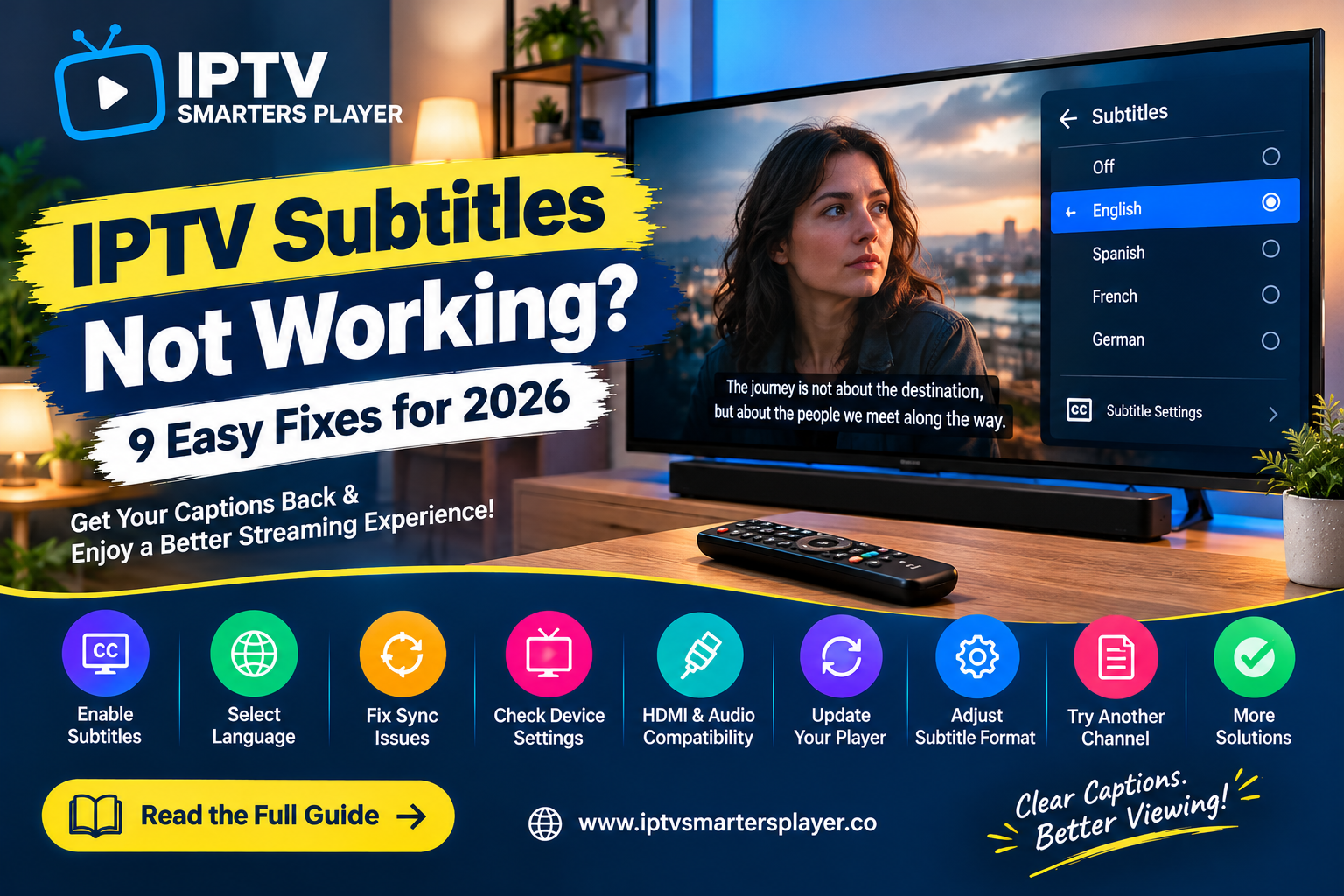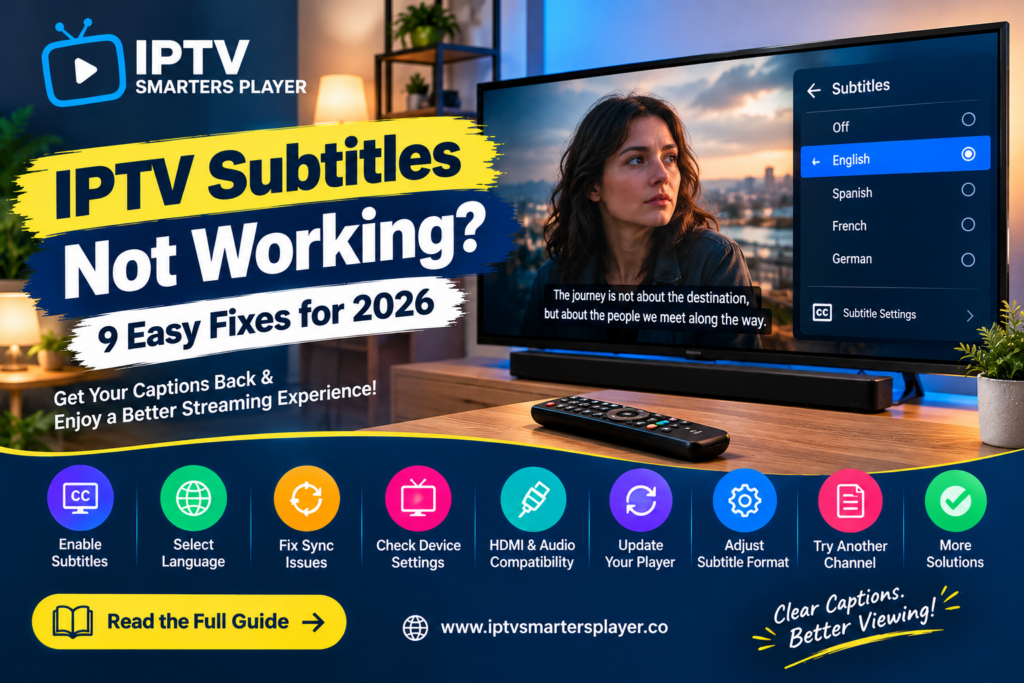
IPTV subtitles not working can make your favourite movies, television programmes, and international content difficult to enjoy. You might experience missing captions, incorrect languages, delayed subtitles, or text that disappears unexpectedly.
Subtitles are especially useful when watching foreign-language entertainment, following dialogue in noisy environments, or improving accessibility.
Fortunately, many common IPTV subtitle problems can be diagnosed with a few simple checks.
In this guide, we’ll explain why IPTV subtitles sometimes fail and explore nine practical solutions to improve your streaming experience in 2026.
Why Are IPTV Subtitles Not Working?
Before changing your settings, it’s important to understand what might be causing the problem.
Common reasons include:
- Subtitles are disabled in the player.
- The selected channel does not provide subtitle tracks.
- An incorrect subtitle language is selected.
- The video uses an unsupported subtitle format.
- The IPTV application needs an update.
- Subtitle timing is incorrect.
- Device accessibility settings are misconfigured.
- The original content source contains missing or damaged caption data.
Not every video or live television channel includes subtitles. Their availability depends partly on the content source.
1. Enable Subtitles in Your IPTV Player
The first step is to confirm that subtitles are enabled.
Depending on your IPTV player and version, subtitle controls may appear in the playback menu, settings panel, or language options.
Try these steps:
- Open a video that should contain subtitles.
- Look for a subtitle or closed-caption icon.
- Open the available subtitle options.
- Select a supported subtitle track.
- Resume playback and check whether captions appear.
If no subtitle tracks are listed, the content may not include them.
2. Check Whether the Content Supports Subtitles
One of the most common reasons for missing IPTV subtitles is that the original content does not provide a subtitle track.
Some movies and on-demand programmes include multiple language options, while certain live television broadcasts may offer limited caption support.
Test another programme from a source you’re authorised to access.
If subtitles work on one video but not another, the issue may be related to the individual content rather than your device.
Contact your authorised content provider if a subtitle track that should be available is consistently missing.
3. Select the Correct Subtitle Language
Sometimes subtitles are working, but the player is displaying an unexpected language.
Open the subtitle settings and review the available language options.
Select your preferred language if it is provided.
Keep in mind that changing your device’s system language does not automatically create subtitle tracks that are missing from the original video.
The available languages depend on the content and playback application.
4. Restart Your IPTV Application
Temporary playback errors can sometimes prevent subtitle tracks from appearing correctly.
Close your IPTV player completely, reopen it, and test the video again.
If the issue continues, restart your Smart TV, smartphone, or streaming device.
A restart may resolve temporary application problems without requiring more advanced troubleshooting.
5. Update Your IPTV Player
Outdated applications can occasionally experience playback compatibility problems.
Check whether an updated version of your IPTV player is available through its verified distribution channel.
Install the supported update and restart the application.
For additional streaming tutorials and setup information, visit IPTV Smarters Player.
Avoid downloading modified application files from unknown websites.
6. Check Subtitle Format Compatibility
Different video players and streaming devices support different subtitle formats.
Common subtitle formats include:
| Format | Description |
|---|---|
| SRT | Text-based subtitle format |
| WebVTT | Subtitle and caption format commonly used for web video |
| ASS/SSA | Advanced text subtitles with additional styling capabilities |
| Embedded subtitles | Subtitle tracks included within a media container |
| Closed captions | Caption information supplied with compatible video content |
Support varies depending on the application, device, and playback method.
If subtitles work on one device but not another, check whether the affected player supports the relevant format.
For technical information about web captions, explore the MDN WebVTT documentation.
7. Fix Delayed or Out-of-Sync Subtitles
Sometimes subtitles appear, but they display too early or too late.
For example, the dialogue may finish before the corresponding subtitle appears.
If your IPTV player provides a subtitle-delay or synchronisation setting, adjust it gradually while watching a scene with clear dialogue.
Try the following:
- Pause the video.
- Open the subtitle settings.
- Find the subtitle-delay option, if available.
- Make a small timing adjustment.
- Resume playback and compare the text with the dialogue.
If the subtitle track itself is incorrectly timed, a player adjustment may not fully resolve the issue.
8. Review Your Smart TV Accessibility Settings
Many modern televisions include accessibility features related to subtitles and closed captions.
These settings may operate separately from the controls inside your IPTV application.
Open your television’s accessibility or caption settings and review the available options.
Depending on your device, you may be able to adjust caption visibility, text size, colour, or background appearance.
For platform-specific instructions, consult the official Google TV Help Center.
Remember that television caption settings do not necessarily control every third-party application.
9. Test Another Compatible Device
If subtitles still aren’t displaying, try playing the same authorised content on another compatible device.
For example, compare playback between your Smart TV and smartphone.
If subtitles appear correctly on one device but not the other, investigate differences in application versions, subtitle support, and device settings.
If the subtitle track is missing everywhere, the problem may involve the original content source.
Testing another device can help you narrow down the cause before reinstalling applications or changing advanced settings.
IPTV Subtitle Troubleshooting Table
| Problem | Possible Cause | Suggested Fix |
|---|---|---|
| No subtitles appear | Captions disabled | Enable available subtitle track |
| Subtitle option missing | No subtitle data supplied | Test another programme |
| Wrong subtitle language | Incorrect track selected | Change subtitle language |
| Subtitles appear late | Timing mismatch | Adjust subtitle delay if supported |
| Text is difficult to read | Caption display settings | Review accessibility options |
| Subtitles work only on phone | Device compatibility issue | Compare player versions and formats |
| Subtitles suddenly disappear | Temporary playback problem | Restart the player |
Frequently Asked Questions
Why are IPTV subtitles not working on my Smart TV?
Possible causes include disabled subtitles, unsupported caption formats, missing subtitle tracks, outdated application software, or incorrect playback settings.
How do I enable subtitles in IPTV Smarters Player?
Open the playback controls and look for available subtitle options. The exact menu and available features depend on the supported application version, device, and content source.
Why do some IPTV channels have no subtitles?
Subtitle availability depends on the original broadcaster or content provider. Not every live channel or on-demand video supplies caption tracks.
Can I change the IPTV subtitle language?
You can select another language when the content includes multiple subtitle tracks and your player supports language selection.
How do I fix subtitles that are out of sync?
Check whether your player provides a subtitle-delay adjustment. Small timing changes may help align captions with dialogue.
Does reinstalling the IPTV app fix subtitle problems?
Reinstallation may help certain persistent application issues, but first check subtitle availability, language selection, player updates, and device compatibility. Preserve any authorised account or playlist details before uninstalling.
Final Thoughts
When IPTV subtitles are not working, start with the simplest checks.
Enable captions, select the correct language, test another programme, and restart your IPTV player. If the issue continues, investigate subtitle-format compatibility and device accessibility settings.
Remember that subtitle availability ultimately depends on the original content source, so not every missing-caption problem can be fixed through player settings.
For more helpful IPTV tutorials and streaming troubleshooting guides, visit IPTV Smarters Player.
Better captions. Easier viewing. A more enjoyable streaming experience.