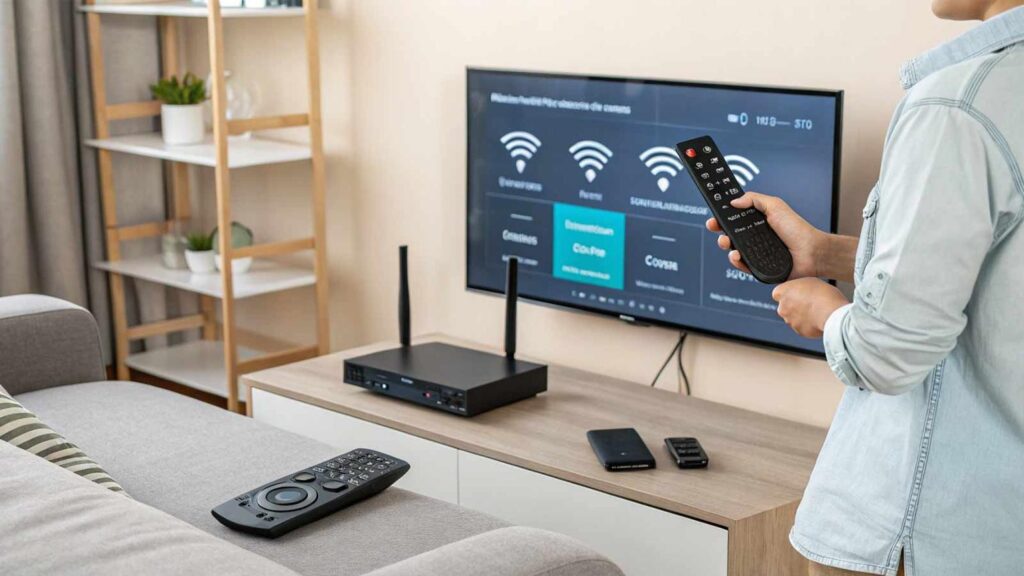
IPTV on multiple devices gives you the flexibility to watch your favourite content on a compatible Smart TV, smartphone, tablet, or computer. However, setting up your player on several devices can sometimes create confusion around login details, playlists, app compatibility, and simultaneous streaming limits.
The good news is that getting started doesn’t have to be complicated. With the right preparation, you can configure your IPTV player on supported devices and troubleshoot common problems more efficiently.
In this guide, we’ll explain how to prepare your devices, configure your player, manage your connection, and avoid common setup mistakes.
What Do You Need Before Setting Up IPTV on Multiple Devices?
Before installing an IPTV player, gather the information and equipment you’ll need.
You may need:
- A compatible Smart TV, smartphone, tablet, computer, or streaming device.
- A reliable internet connection.
- An IPTV player that supports your device.
- Playlist information or login credentials supplied by your authorised service provider.
- An active subscription or authorised content source, where required.
- Access to your device’s official app store or supported installation method.
Not every IPTV player supports every operating system. Check the app’s official compatibility information before beginning.
1. Check Which Devices Your IPTV Player Supports
Your first step is to confirm that your chosen player works with each device you intend to use.
For example, a player available for Android may not be available in the same form for every Smart TV platform.
Check the following:
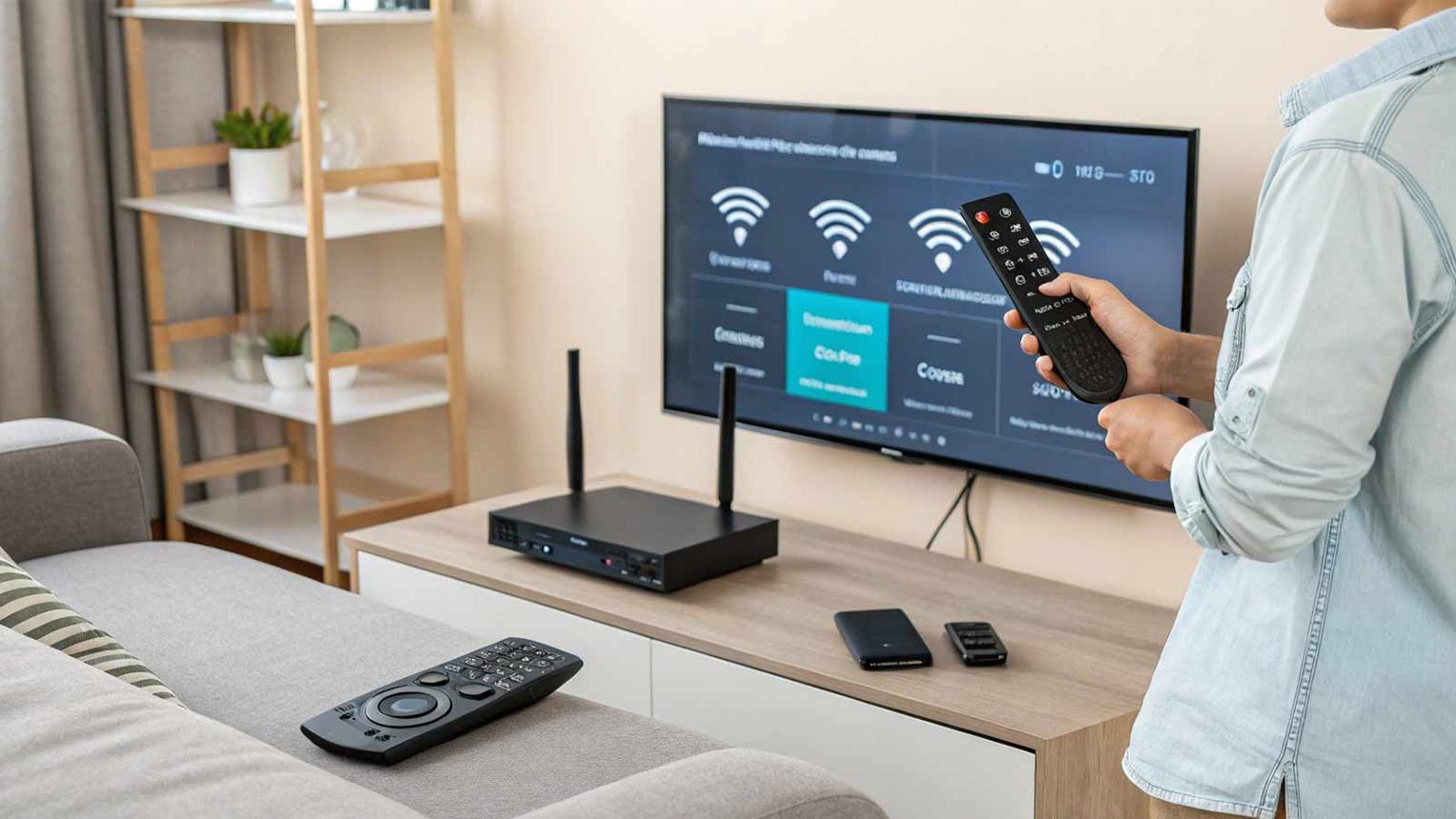
- Smart TV: Confirm the app is available for your television’s operating system.
- Smartphone: Check compatibility with your Android or iOS version.
- Tablet: Verify screen and operating-system support.
- Computer: Check whether a supported desktop application or compatible playback method is available.
- Streaming device: Confirm that the player supports the device’s operating system.
Do not assume that an app available on your phone will automatically be available on your television.
2. Install the Player Using an Official Source
Once you’ve confirmed compatibility, install the application through the device’s official app store or the developer’s verified distribution channel.
Open the store, search for the correct app, review the developer information, and follow the installation instructions.
Avoid unknown downloads, suspicious installation files, and websites that promise modified applications. Unverified software can create security and reliability risks.
After installation, open the player and review its initial setup screen.
3. Add Your Playlist or Login Information
Many IPTV players are media players rather than content providers. They may require you to supply a compatible playlist or account details from a service you are authorised to use.
Depending on the application, setup may involve:
- An M3U playlist URL.
- An Xtream-compatible login.
- A portal or server address.
- Another supported content-source format.
The available options depend on the player and service.
Enter your details carefully and check for typing mistakes, missing characters, or extra spaces. If the application reports an authentication error, confirm the information with your authorised provider.
Never publish your login details or share private playlist URLs publicly.
4. Understand the Difference Between Installing an App and Streaming Simultaneously
One important detail often causes confusion: installing a player on multiple devices does not necessarily mean you can watch on all of them at the same time.
There are three separate considerations:
- App installation: Whether the player can be installed on each device.
- Account access: Whether your service permits the same credentials to be configured on multiple devices.
- Simultaneous streams: How many devices may play content at the same time under your service’s terms.
Some services allow multiple devices to be configured but restrict concurrent playback. Others offer different limits depending on the subscription.
Check your provider’s rules before assuming that several devices can stream simultaneously. Do not try to bypass account restrictions.
5. Test Each Device Separately
After configuring your player, test it on one device at a time.
Start by opening the application and confirming that your authorised content source loads correctly.
Then test playback on your first device. If it works, repeat the process on your next device.
This method helps you identify whether a problem is related to one particular device, the player, your network, or your account.
If a device fails during setup, check its compatibility and login configuration before making changes elsewhere.
6. Optimise Your Home Network
Streaming quality depends partly on your internet connection and local network.
If several people use the internet simultaneously, video calls, downloads, gaming, and other streaming sessions may compete for available bandwidth.
Try these practical steps:
- Place your router in an open, central location.
- Reduce unnecessary background downloads.
- Test your internet connection on the device experiencing problems.
- Move a device closer to the router if its Wi-Fi signal is weak.
- Use Ethernet when supported and practical.
- Restart your router if you suspect a temporary connection problem.
Ethernet can improve the consistency of a device’s connection to your router, but it cannot fix every issue involving your internet provider or remote content source.
7. Keep Your Devices and Applications Updated
Outdated software can sometimes lead to compatibility issues, errors, or unexpected application behaviour.
Check for updates through the official app store and your device’s system settings.
If an update is available, review its information and follow the recommended installation process.
If the application continues to fail, check the developer’s support resources for known issues affecting your device model or operating-system version.
Avoid deleting application data or reinstalling the player without first confirming that you can restore your setup information.
8. Troubleshoot Common Multi-Device Problems
Even after a successful setup, you may occasionally encounter errors.
The player works on one device but not another
Check the second device’s compatibility, internet connection, application version, and login information. Different devices can have different requirements.
The playlist loads but channels do not play
Test another authorised channel or content item. The issue may involve the specific stream, playback format, or content source.
You receive a login or connection error
Verify your credentials and server information. If the information is correct, ask your authorised provider to check your account status.
One device stops when another starts playing
Check your subscription’s simultaneous-stream limit. The service may restrict the number of active streams.
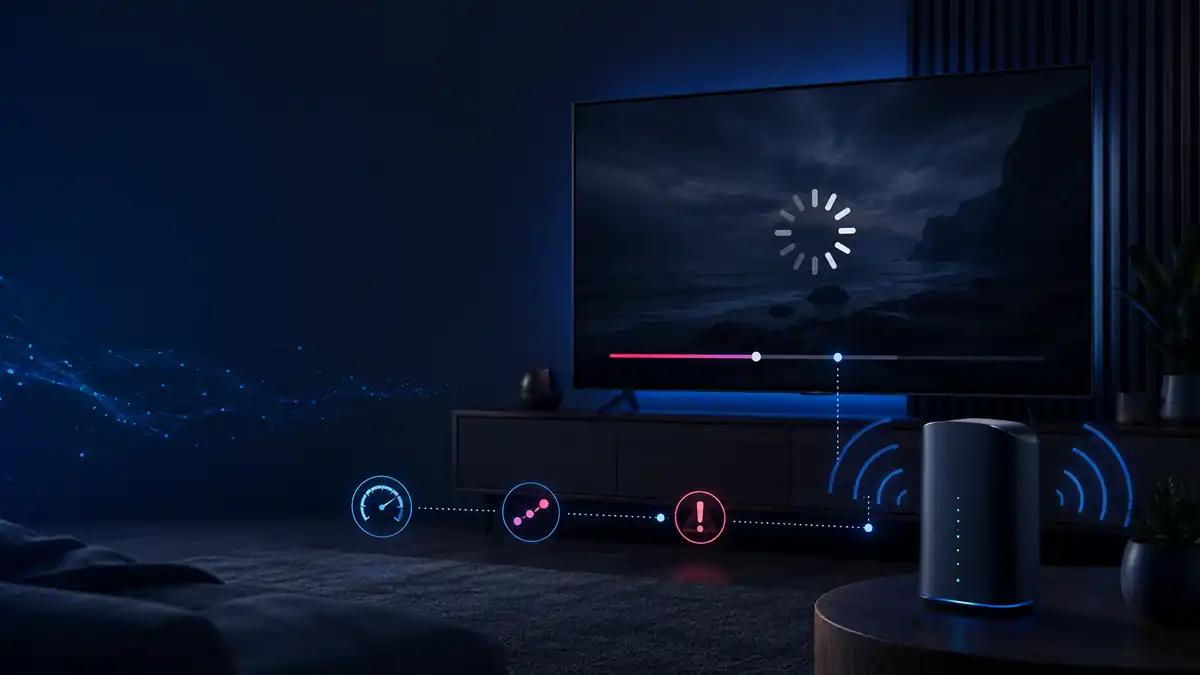
Playback buffers on several devices
Investigate your network’s overall performance, especially during busy periods. Pause unnecessary downloads and compare results on a wired connection where possible.
9. Protect Your Login Details and Devices
Setting up a player on several devices means you need to manage your account information carefully.
Follow these basic security practices:
- Use official application sources.
- Keep your device software updated.
- Do not share account passwords or private playlist URLs.
- Avoid entering credentials on unfamiliar websites.
- Review your service’s device and connection rules.
- Remove access from devices you no longer use, where your service provides that option.
These steps help reduce avoidable security and account-management problems.
Frequently Asked Questions
Can I use IPTV on my TV and phone?
Yes, if your chosen player supports both devices and your authorised service permits the required account access. Simultaneous viewing may be subject to separate restrictions.
Do I need to install the same IPTV player on every device?
Not necessarily. You can use different compatible players, provided each supports your authorised content source and complies with your service’s requirements.
Why does IPTV work on my phone but not on my TV?
Possible reasons include app incompatibility, different network connections, incorrect login information, device limitations, or a problem with the particular stream. Troubleshoot the TV separately before changing working settings on your phone.
Does using several devices require faster internet?
It may. Multiple simultaneous streams can increase your household’s total bandwidth demand. The amount required depends on video quality, compression, and other network activity.
Can I use one account on multiple devices?
That depends on the service’s terms and account configuration. Check the permitted number of registered devices and simultaneous streams with your provider.
Is an IPTV player the same as an IPTV subscription?
No. A player is software used to access compatible content sources. Access to channels or other content may require a separate authorised service or subscription.
Final Thoughts
Setting up IPTV on multiple devices is easier when you check compatibility first, use a trusted installation source, configure your authorised playlist carefully, and test each device individually.
Remember that installing an app on several devices is different from being allowed to stream on all of them simultaneously. Your provider’s account rules, the capabilities of your devices, and the quality of your network all affect the experience.
For more IPTV setup information and streaming guides, visit IPTV Smarters Player.
For help with device settings and compatibility, visit the official Android Help Center.
If you experience problems with your compatible TV or streaming device, consult the Google TV Help Center.
To evaluate your internet connection, try the Cloudflare Internet Speed Test.