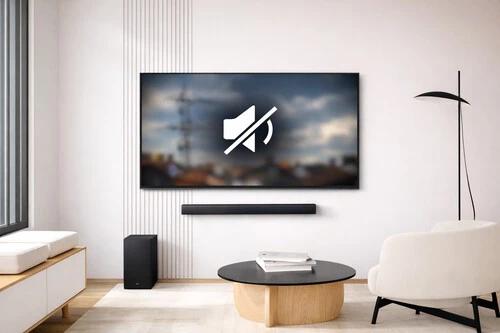
IPTV sound not working can quickly ruin your streaming experience. You open your favourite channel, the picture looks perfect, but there’s no sound. Sometimes the audio is delayed, distorted, too quiet, or completely missing.
These problems can occur on Smart TVs, Android TV devices, streaming boxes, smartphones, and other compatible devices.
Fortunately, many IPTV audio problems can be diagnosed without replacing your television or changing your entire streaming setup.
In this 2026 troubleshooting guide, we’ll explore ten practical solutions for restoring sound and improving your IPTV viewing experience.
Why Is IPTV Sound Not Working?
Several factors can cause IPTV audio problems.
The most common possibilities include:
- Muted television or application volume.
- Incorrect audio output settings.
- Unsupported audio formats.
- Loose HDMI connections.
- Bluetooth audio delays.
- Outdated player software.
- Temporary application errors.
- Problems with an individual channel.
- External speaker or soundbar configuration.
Before making major changes, identify whether the problem affects every application or only your IPTV player.
1. Check Your TV and IPTV Volume Settings
The simplest solution is often the easiest to overlook.
Start by checking whether your television, streaming device, or IPTV application has been muted.
Some devices have independent volume controls, meaning your TV volume may be high while the connected streaming device remains muted.
Try these steps:
- Increase your television volume.
- Check the mute button.
- Review your streaming device’s volume.
- Check the IPTV player’s audio controls, if available.
- Play another programme to test the result.
If the sound returns, no additional troubleshooting may be necessary.
2. Restart Your IPTV Player
Temporary application errors can occasionally interrupt audio playback.
Close your IPTV player completely rather than simply returning to the television’s home screen.
Wait briefly, reopen the application, and test the same channel.
If the issue continues, restart your Smart TV or streaming device.
Restarting can help resolve temporary software problems, although recurring errors may require further investigation.
3. Check Your Smart TV Audio Output Settings
Modern televisions often support several audio output methods, including internal speakers, HDMI ARC/eARC, optical audio, and Bluetooth.
If the wrong output is selected, your IPTV video may play without audible sound.
Open your television’s sound settings and confirm that the correct output device is selected.
For example, if you aren’t using an external sound system, try selecting the television’s built-in speakers.
Menu names vary depending on the manufacturer and model.
For device-specific instructions, consult the official Samsung Support or LG Support websites, where applicable.
4. Inspect Your HDMI Connection
If you’re using an external streaming box, a loose or problematic HDMI connection may contribute to audio issues.
Turn off the connected equipment before checking the cable.
Make sure both ends are securely connected.
If necessary, test another available HDMI port or a suitable replacement cable.
Also verify that your television is using the correct input.
Remember that an HDMI connection can carry both video and audio, so connection problems may affect either signal.
5. Check Audio Format Compatibility
Sometimes IPTV sound problems occur because the streaming device or connected audio equipment cannot decode the audio format being delivered.
Different devices support different audio codecs and output formats.
If your television or streaming box provides an audio-format setting, review the supported options.
For example, some equipment allows you to select PCM instead of automatic or passthrough output.
Testing PCM may help identify a compatibility problem, but the available settings depend on your hardware.
Avoid changing advanced audio settings without checking your manufacturer’s instructions.
6. Fix Bluetooth Headphone and Speaker Problems
Bluetooth headphones and speakers provide wireless convenience, but they can introduce additional connection and synchronisation issues.
If your IPTV audio disappears when Bluetooth is enabled, disconnect the wireless accessory temporarily.
Then test playback using your television’s internal speakers.
If the sound works normally, investigate your Bluetooth connection.
You can also try:
- Reconnecting your headphones.
- Checking the accessory’s battery.
- Restarting the Bluetooth device.
- Reducing wireless interference.
- Checking whether your television offers audio-delay adjustment.
Some Bluetooth devices introduce noticeable latency, particularly when watching dialogue-heavy content.
7. Update Your IPTV Application
An outdated IPTV player may experience compatibility problems or playback bugs.
Open your device’s official app store and check for available updates.
Install the latest supported version, then restart the application.
Also check whether your television or streaming device has a pending operating-system update.
For additional IPTV setup information and troubleshooting tutorials, visit IPTV Smarters Player.
Only install applications through trusted, verified sources.
8. Test Another Channel or Programme
If one channel has no sound while other channels work normally, the problem may be related to that particular content source.
Try another channel or programme that you’re authorised to access.
Compare the results.
If the problem affects only one stream, contact your authorised content provider and explain the issue.
If every channel has missing audio, focus on the player, device, and audio-output settings instead.
9. Fix IPTV Audio and Video Synchronisation
Sometimes IPTV audio works, but the sound doesn’t match the picture.
For example, a person’s lips may move before you hear their voice.
This is commonly described as an audio-sync or lip-sync problem.
Possible causes include audio processing, external sound systems, Bluetooth latency, or playback compatibility.
Try the following:
- Restart the application.
- Test your TV’s built-in speakers.
- Temporarily disconnect Bluetooth accessories.
- Check your soundbar’s audio-delay settings.
- Review any audio-sync controls supported by your television or player.
If your device includes an audio-delay adjustment, change it gradually while testing dialogue.
For more technical information about media playback on supported Android devices, consult the Android Developers Media Documentation.
10. Check Your Soundbar or External Speaker Setup
If you use a soundbar, home theatre system, or external speakers, verify that the equipment is powered on and configured correctly.
Confirm that the correct input is selected.
If you’re using HDMI ARC or eARC, review your television’s HDMI audio settings and check whether the connected equipment supports the selected format.
You can temporarily switch to the television’s internal speakers to determine whether the external audio system is contributing to the problem.
If internal speakers work but the soundbar doesn’t, consult your soundbar manufacturer’s troubleshooting instructions.
Quick IPTV Audio Troubleshooting Table
| Audio Problem | What to Check First |
|---|---|
| No sound on any channel | Volume and audio output |
| Picture works but sound is missing | Audio format compatibility |
| Sound disappears on Bluetooth | Wireless connection and output selection |
| Delayed dialogue | Audio-sync settings |
| Soundbar has no audio | HDMI ARC/eARC and input selection |
| Only one channel has no sound | Individual content source |
| Sound stops after an update | App and device compatibility |
| Audio is distorted | Speakers, source quality, and output format |
Frequently Asked Questions
Why does IPTV have a picture but no sound?
Possible causes include muted volume, incorrect audio output, unsupported audio formats, application errors, or a problem with the individual stream.
How do I fix IPTV sound on my Smart TV?
Start by checking your TV volume, restarting the application, selecting the correct audio output, and testing another channel.
Can HDMI cause IPTV audio problems?
Yes. Connection issues, incorrect audio settings, or compatibility problems between connected devices can affect HDMI audio playback.
Why is IPTV audio delayed?
Audio delay can result from Bluetooth latency, external audio processing, playback settings, or device compatibility.
Should I reinstall my IPTV player?
Reinstallation may help with certain persistent application problems, but try restarting, updating, and checking audio settings first. Make sure you can restore your authorised account or playlist details before deleting the application.
Does internet speed affect IPTV sound?
An unstable connection can disrupt streaming playback, but missing audio with otherwise normal video may also indicate an audio-output, codec, or source-specific problem.
Final Thoughts
When IPTV sound is not working, begin with simple checks before changing advanced settings.
Verify your volume, restart your player, check the television’s audio output, and test another authorised channel. If you use external speakers or Bluetooth accessories, temporarily disconnect them to isolate the problem.
By testing one setting at a time, you can identify the likely cause more efficiently.
For more IPTV tutorials, streaming information, and troubleshooting guides, explore IPTV Smarters Player.
Clear picture. Clear sound. Better entertainment.