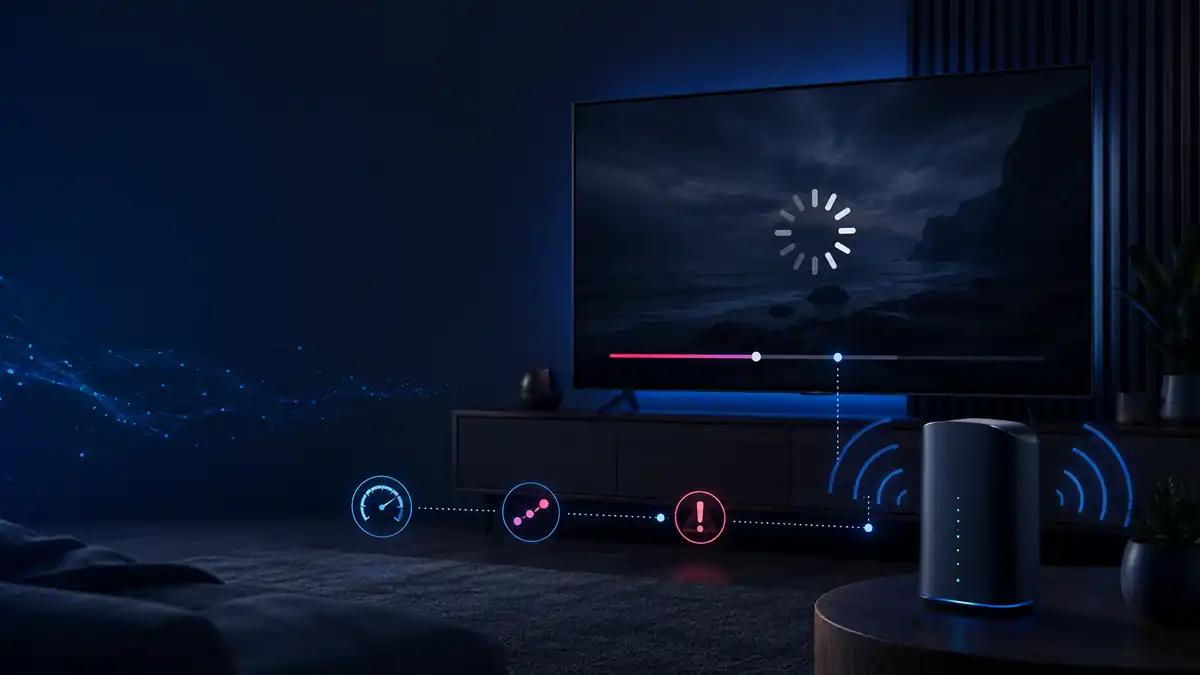
IPTV buffering at night can be frustrating, especially when your favourite channels work perfectly during the daytime but start freezing, loading, or lagging in the evening.
You sit down to enjoy a movie or live programme, only to experience constant interruptions. Your internet connection appears normal, yet your streaming experience suddenly becomes unreliable.
Why does this happen?
Evening streaming problems can have several causes, including network congestion, weak Wi-Fi, competing household devices, router performance, or problems with an individual streaming source.
In this guide, we’ll explore eight practical solutions to help you identify the issue and improve your IPTV streaming experience.
Why Does IPTV Buffer More at Night?
Internet usage often increases during the evening when more people are at home watching videos, gaming, downloading files, and using connected devices.
Depending on your network and internet provider, this increased demand can contribute to congestion.
However, peak-hour congestion isn’t the only possible explanation.
Other causes include:
- Weak wireless signals.
- Multiple devices sharing bandwidth.
- Background downloads.
- Router performance issues.
- Streaming server congestion.
- Device overheating or limited processing power.
- Temporary internet connection instability.
Understanding the cause is the first step toward fixing the problem.
1. Test Your Internet Speed During Peak Hours
The first thing to investigate is whether your internet connection performs differently during the day and evening.
Run an internet speed test in the afternoon and repeat it when buffering normally begins.
Compare the results.
Pay attention to download speed, latency, and whether the connection behaves consistently across multiple tests.
A connection that performs well during the day but becomes significantly slower at night may indicate congestion somewhere along the network path.
You can use Cloudflare’s Internet Speed Test to examine your connection.
Remember that a speed test cannot diagnose every streaming issue. A good result does not automatically guarantee uninterrupted playback from every service.
2. Reduce the Number of Connected Devices
Your home network may be handling more traffic than you realise.
Smartphones, laptops, gaming consoles, tablets, and security cameras can all consume bandwidth.
Large downloads and automatic cloud backups may be particularly noticeable during streaming.
Try these steps:
- Pause unnecessary downloads.
- Temporarily stop large file transfers.
- Disconnect unused devices.
- Close background streaming applications.
- Test your IPTV playback again.
If streaming improves, household bandwidth competition may have contributed to the problem.
3. Switch From Wi-Fi to Ethernet
Wi-Fi provides convenience, but wireless connections can be affected by distance, walls, interference, and competing devices.
If your Smart TV or streaming box supports a wired connection, try connecting it directly to your router using an Ethernet cable.
Ethernet can offer a more consistent local connection by avoiding many common wireless interference issues.
However, it cannot fix congestion at your internet provider or problems with a remote streaming server.
For readers comparing connection types, visit our IPTV Smarters Player streaming guides.
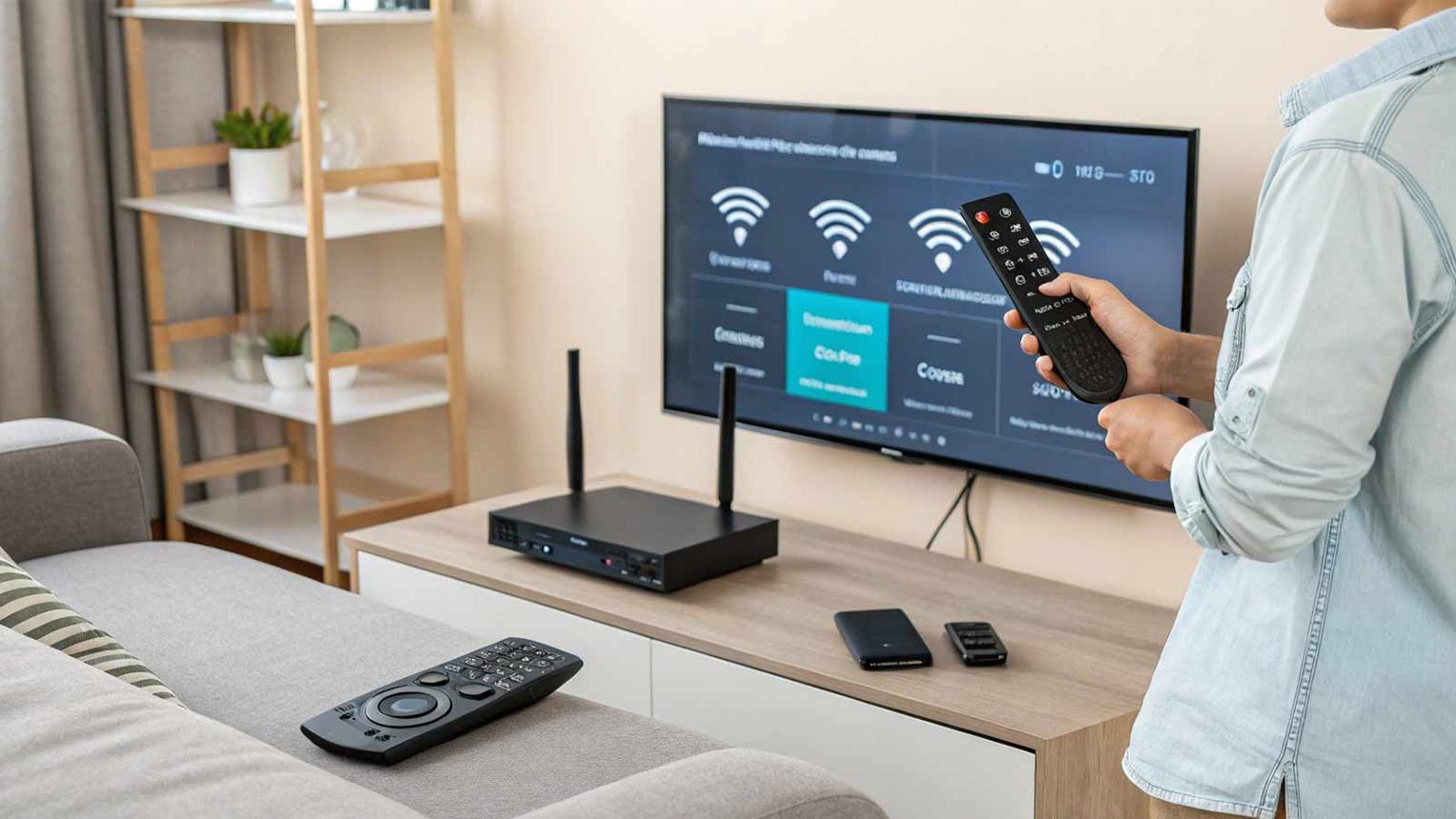
4. Restart Your Router and Streaming Device
Routers and streaming devices occasionally experience temporary performance problems.
Restarting them can help clear some transient connection or software issues.
Follow this process:
- Close your IPTV application.
- Restart your Smart TV or streaming device.
- Restart your router using its normal restart procedure.
- Wait until the internet connection is restored.
- Open your IPTV player and test playback.
If restarting only provides temporary relief, investigate the underlying network issue instead of relying on repeated restarts.
5. Improve Your Wi-Fi Signal
If using Ethernet isn’t practical, improving your wireless setup may help.
Try positioning your router in a central, open location rather than hiding it inside a cabinet or behind a television.
Keep it away from major obstructions and potential sources of interference.
If your router supports multiple Wi-Fi bands, test which one works best in your environment.
A 5 GHz connection may provide better performance at shorter distances, while 2.4 GHz can offer better reach in some homes.
Your results will depend on the router, device, building layout, and nearby wireless networks.
For additional wireless networking information, explore the Wi-Fi Alliance.
6. Check Whether the Problem Affects Every Channel
Not every buffering problem originates from your home internet connection.
Sometimes an individual channel or stream experiences technical difficulties.
To investigate:
- Test another channel you are authorised to watch.
- Check whether on-demand content plays normally.
- Compare playback on another compatible device.
- Check for any service-status announcements.
- Contact your authorised streaming provider if necessary.
If only one channel experiences problems while everything else works normally, the issue may be specific to that stream.
If every channel buffers, investigate your internet connection, device, and application settings.
7. Update Your IPTV Player and Device Software
Outdated applications can sometimes experience playback errors, compatibility problems, or performance issues.
Check for updates to your IPTV player through its supported distribution channel.
Also check whether your Smart TV, Android TV device, Fire TV device, or other streaming hardware has an available system update.
Keeping supported software updated can help address known bugs and compatibility issues.
For more information about IPTV players and setup, visit IPTV Smarters Player.
Avoid installing unknown applications or unofficial software packages from untrusted sources.
8. Contact Your Internet Provider if Evening Slowdowns Continue
If multiple websites and streaming applications become noticeably slower every evening, your internet provider may be able to help investigate.
Before contacting support, collect useful information:
- The approximate time the slowdown begins.
- Daytime and evening speed-test results.
- Whether the problem affects wired and wireless connections.
- Whether multiple devices experience the same issue.
- Any recurring connection interruptions.
This information can help distinguish a household Wi-Fi problem from a wider connectivity issue.
If only one streaming service is affected, contact that service’s authorised support team as well.
Quick Comparison: Common IPTV Buffering Causes
| Possible Cause | Suggested First Step |
|---|---|
| Peak-hour congestion | Compare daytime and evening speed tests |
| Weak Wi-Fi | Move closer to the router or test Ethernet |
| Too many connected devices | Pause unnecessary downloads |
| Temporary router issue | Restart the router |
| Individual channel problem | Test another authorised channel |
| Outdated IPTV application | Check for supported updates |
| Device performance issue | Restart and check compatibility |
| Persistent internet slowdown | Contact your internet provider |
Frequently Asked Questions
Why does IPTV work during the day but buffer at night?
Increased evening internet usage may contribute to congestion. However, household bandwidth competition, wireless interference, device performance, and individual streaming problems are also possible causes.
Will Ethernet stop IPTV buffering?
Ethernet can improve the stability of the connection between your streaming device and router. It cannot guarantee uninterrupted playback if the underlying problem is outside your home network.
Does restarting the router improve IPTV streaming?
It may resolve temporary network issues, but recurring buffering requires further investigation.
Can too many connected devices cause IPTV buffering?
Yes. Large downloads, cloud backups, and simultaneous video streams can compete for available household bandwidth.
Should I change my IPTV application if buffering only happens at night?
Not immediately. First compare your connection at different times, test other content, check your device, and verify whether the issue affects other internet services.
Final Thoughts
IPTV buffering at night doesn’t necessarily mean your IPTV player is faulty.
Start by comparing your daytime and evening internet performance. Then check household bandwidth usage, improve your Wi-Fi setup, test Ethernet, and verify whether the problem affects every channel.
Taking a systematic approach can help you identify the actual cause without making unnecessary changes.
For more helpful streaming guides, setup information, and IPTV troubleshooting tips, explore IPTV Smarters Player.
Enjoy smoother streaming with a better-connected home.