IPTV picture quality plays an important role in your overall streaming experience. Whether you’re watching live television, sports, movies, or entertainment programmes, a clear picture makes viewing more enjoyable.
However, you may occasionally notice blurry images, pixelation, washed-out colours, motion blur, or inconsistent resolution.
These problems do not always mean your IPTV player is faulty. Picture quality depends on several factors, including the original video source, internet connection, device capabilities, video compression, and television settings.
In this guide, we’ll explore ten practical ways to improve your IPTV viewing experience in 2026.
Why Does IPTV Picture Quality Sometimes Look Bad?
Before changing your settings, it’s helpful to understand what affects streaming quality.
Common causes include:
- Low-resolution video sources.
- Heavy video compression.
- Unstable internet connections.
- Incorrect television picture settings.
- Unsupported video formats.
- Outdated device software.
- Poor HDMI connections.
- Limited device processing capabilities.
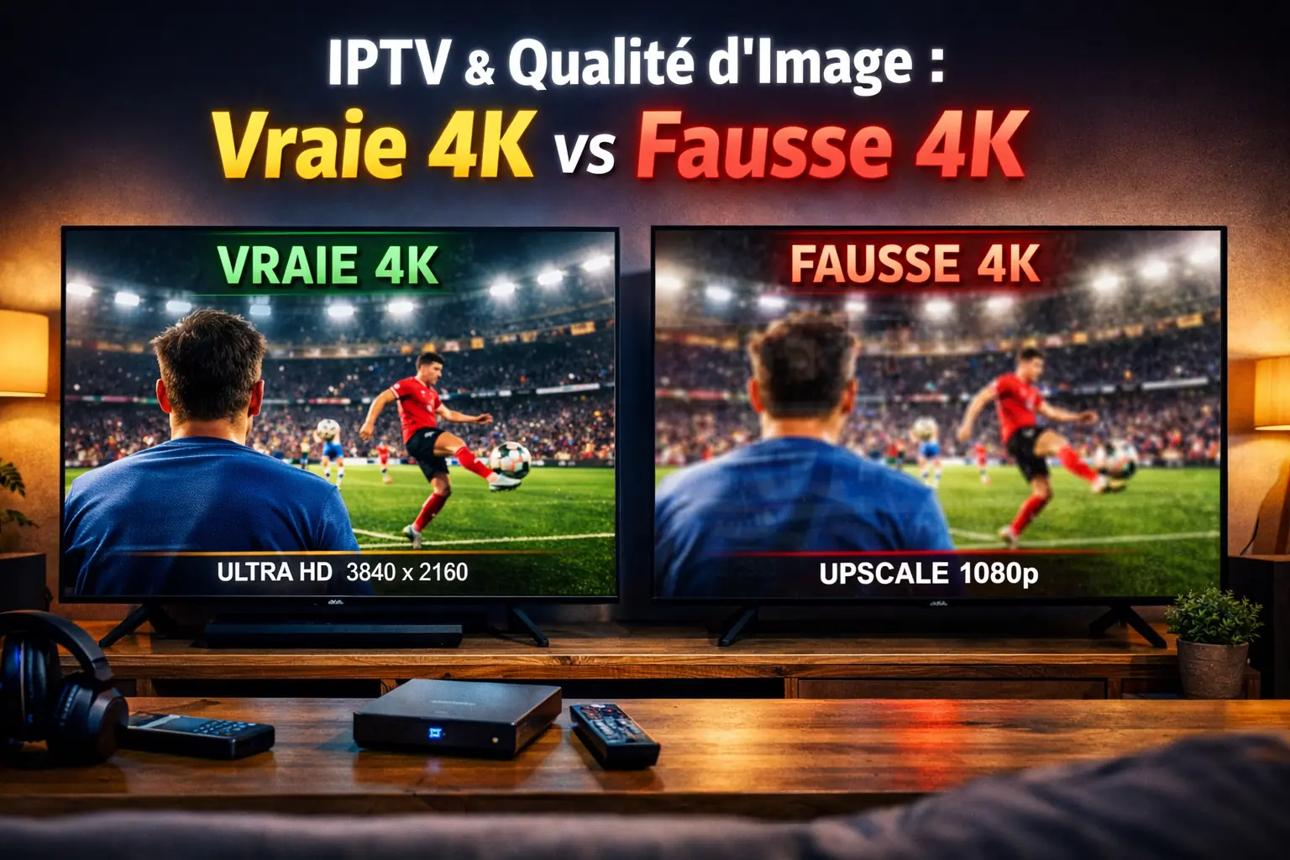
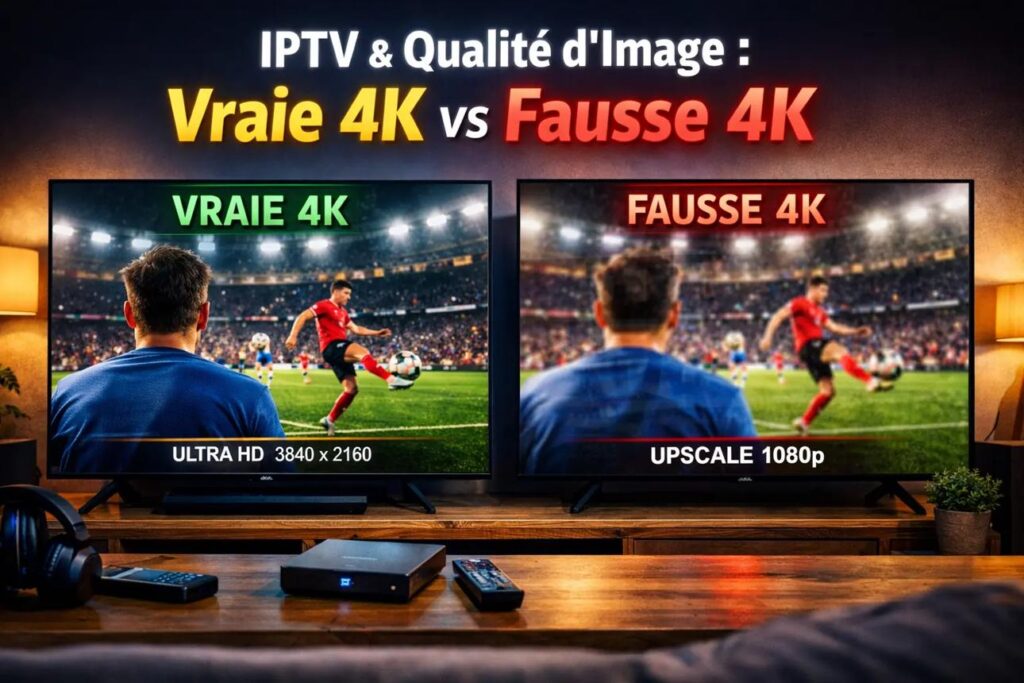
A 4K television cannot automatically turn every low-resolution video into genuine 4K content. The original source quality still matters.
1. Check Your Internet Connection
A reliable internet connection is important for consistent streaming.
If your connection cannot sustain the bandwidth required by a stream, some services may lower video quality automatically, while others may pause or buffer.
Try running an internet speed test directly on your streaming device, where possible.
You can use the Cloudflare Internet Speed Test to examine your connection’s performance.
Compare the results at different times of day to identify possible fluctuations.
Remember that download speed alone does not guarantee excellent streaming. Connection stability and the performance of the content source also matter.
2. Use Ethernet When Possible
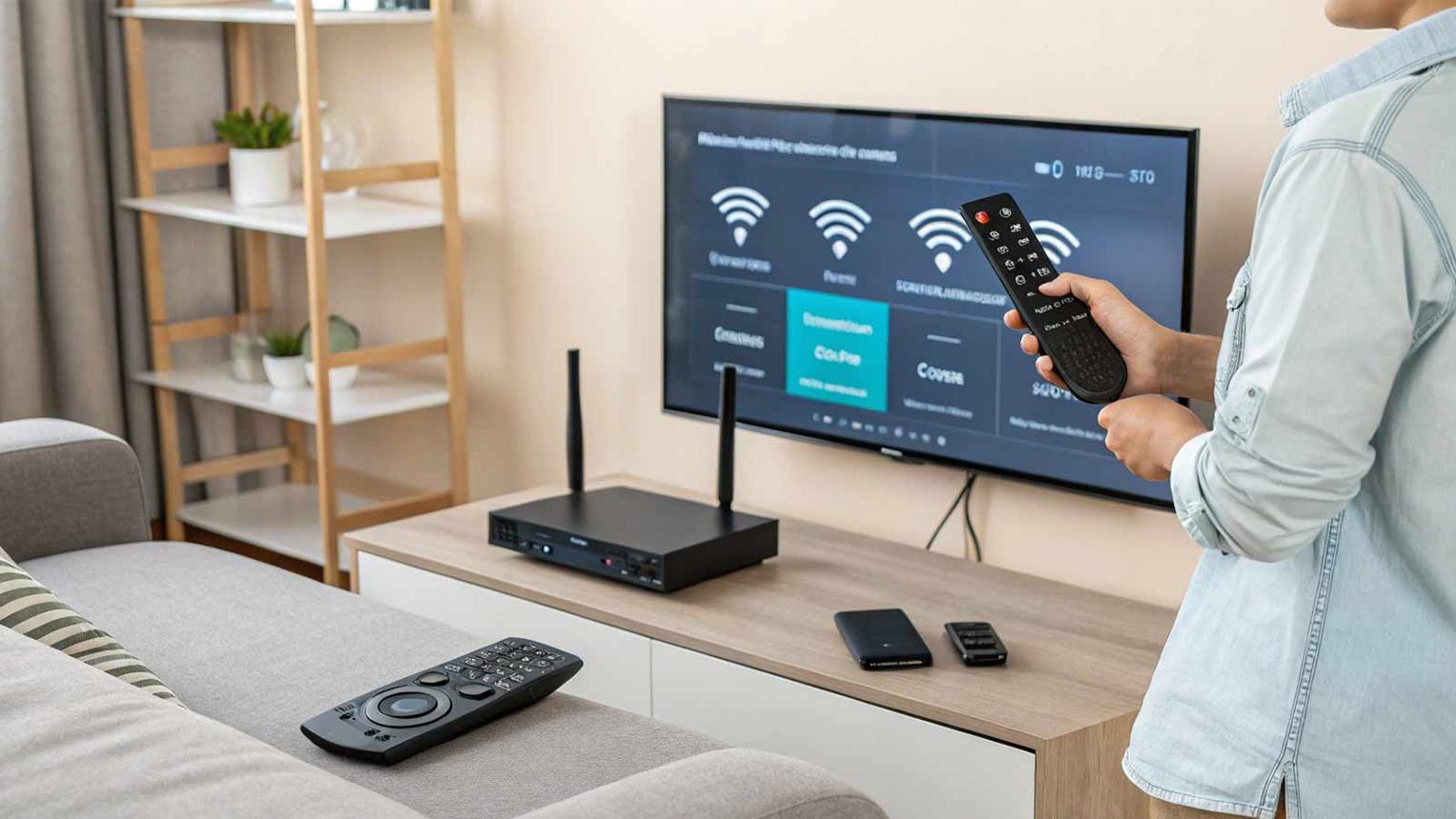
If your Smart TV or streaming device supports Ethernet, consider testing a wired connection.
Ethernet avoids many common wireless interference problems and can provide a more consistent connection between your device and router.
This may be particularly helpful when your television is positioned far from the router.
However, switching to Ethernet will not improve the original resolution of a low-quality stream or fix every problem outside your home network.
3. Select the Appropriate Streaming Resolution
Different video sources are available in different resolutions.
Common examples include:
| Resolution | Typical Pixel Dimensions |
|---|---|
| 720p HD | 1280 × 720 |
| 1080p Full HD | 1920 × 1080 |
| 4K UHD | 3840 × 2160 |
Higher resolution can produce a more detailed picture when the source, device, display, and available bandwidth support it.
If your player provides a quality-selection option, choose a setting appropriate for your equipment and connection.
Avoid forcing a resolution that your device or source cannot support reliably.
4. Adjust Your Smart TV Picture Settings
Your television’s display settings can significantly influence how video appears.
Open your TV’s picture settings and explore the available presets.
Depending on your television, these may include:
- Standard.
- Cinema or Movie.
- Sports.
- Filmmaker Mode.
- Custom.
Cinema-oriented presets often aim for a more natural picture, although the best choice depends on your room, display, and preferences.
Avoid automatically setting sharpness, contrast, and colour saturation to their maximum values. Excessive processing can introduce unnatural edges or distorted colours.
For detailed instructions, consult your television manufacturer’s official support documentation.
5. Check Your HDMI Cable and Device Output
If you use an external streaming box or compatible media device, check its HDMI connection.
Make sure the cable is securely connected and that your television is using the correct HDMI input.
Also review your streaming device’s display-output settings.
For 4K playback, the television, streaming device, HDMI connection, and content must all support the required format.
An expensive cable is not automatically necessary. Use a properly certified cable suitable for the signal format your equipment requires.
6. Update Your IPTV Player
Outdated applications can sometimes experience playback bugs, compatibility problems, or video-rendering issues.
Check whether a supported update is available for your IPTV player.
Install updates through the official app store or the application’s verified distribution channel.
For additional setup information and streaming tutorials, explore IPTV Smarters Player.
Avoid installing modified applications from unknown websites.
7. Check Your Device’s Video Compatibility
Not every streaming device supports every video codec, resolution, or audio format.
A video that plays correctly on a modern smartphone may behave differently on an older Smart TV.
Common video codecs include H.264 and H.265/HEVC, although support varies by device and application.
If a particular stream displays incorrectly, review your device’s supported formats and the player’s official documentation.
You can learn more about media formats and playback technology through the Android Developers Media Documentation.
8. Reduce Unnecessary Background Internet Activity
Other household devices may consume bandwidth while you’re streaming.
Large downloads, cloud backups, software updates, and simultaneous video sessions can all affect the available connection capacity.
To investigate:
- Pause large downloads.
- Temporarily stop unnecessary cloud backups.
- Close unused streaming applications.
- Test playback again.
- Compare the picture quality.
If the experience improves, household network activity may have contributed to the problem.
9. Understand the Difference Between Resolution and Bitrate
Resolution describes the number of pixels in a video image. Bitrate describes how much data is used to represent the video over time.
Both influence picture quality.
For example, a heavily compressed 4K video may contain less visible detail than expected, particularly during fast-moving scenes.
Sports and action content can make compression artefacts more noticeable because the picture changes rapidly.
Increasing your television’s resolution setting cannot restore details that were lost during the original video encoding process.
For additional information about digital video and streaming technology, explore the Cloudflare Learning Center.
10. Test Another Channel or Video Source
Sometimes the problem is limited to a particular content source.
If one channel looks blurry while other authorised streams appear sharp, the issue may involve the original broadcast or its encoding.
Try another channel or programme you are authorised to access.
Compare the results using the same device and network connection.
If every source looks poor, investigate your television settings, player configuration, and connection.
If only one source is affected, contact your authorised content provider when necessary.
IPTV Picture Quality Troubleshooting Table
| Problem | Possible Cause | First Step |
|---|---|---|
| Blurry image | Low-resolution source | Check available stream quality |
| Pixelation | Compression or connection issues | Test another source and network |
| Washed-out colours | Display settings or HDR mismatch | Review TV picture settings |
| Motion blur | Display processing or source quality | Compare picture presets |
| Inconsistent quality | Variable network conditions | Test connection stability |
| 4K not displaying | Compatibility or output settings | Check device and HDMI support |
| One channel looks poor | Individual source issue | Test another authorised channel |
Frequently Asked Questions
How can I improve IPTV picture quality?
Start by checking your internet connection, television settings, device compatibility, and original video source. Use Ethernet when practical and keep your supported applications updated.
Does Ethernet improve IPTV picture quality?
Ethernet can improve local connection stability and may help prevent quality drops caused by unreliable Wi-Fi. It cannot increase the original resolution or bitrate of a video source.
Why does IPTV look blurry on a 4K TV?
A 4K television may be displaying lower-resolution or heavily compressed content. Upscaling can resize the image, but it cannot fully recreate missing source details.
Is 1080p better than 720p for IPTV?
1080p contains more pixels than 720p, but actual viewing quality also depends on compression, bitrate, source quality, and your display.
Can changing TV picture settings improve streaming?
Yes. Adjusting sharpness, contrast, brightness, colour, and picture presets may improve how video appears on your display.
Why does IPTV picture quality change during playback?
Some streaming services adjust video quality according to available bandwidth and playback conditions. Other services may use fixed-quality streams, so behaviour depends on the content source and player.
Final Thoughts
Improving IPTV picture quality requires more than simply selecting the highest available resolution.
Your internet connection, video source, television settings, device compatibility, and application software all contribute to the final viewing experience.
Start with the simplest checks, compare different authorised video sources, and make adjustments one at a time.
For more streaming setup tutorials and troubleshooting information, visit IPTV Smarters Player.
Better settings, clearer pictures, and a more enjoyable streaming experience.